Manage leave requests
Overview
Managing leave requests efficiently is crucial for maintaining operational efficiency and ensuring employee satisfaction. This section provides a comprehensive guide on how to manage various types of leave requests through the Admin app. You will learn how to view pending requests, process them, and handle already processed requests with ease.
When leave requests are approved, any conflicting Shifts and RDOs (Rostered Days Off) will be automatically removed. If the leave is subsequently cancelled, these Shifts and RDOs will be recreated.
View Pending Leave Requests
1. Click "Leave" on the navigation panel.

2. Click "Requests"

3. The "Leave Requests" table is displayed. It defaults to showing Pending Requests.

The visibility of leave requests in the "Leave Requests" table depends on your role and permissions:
| Relationship Column | Description |
|---|---|
| Direct | You are the direct Leave Manager for these employees. |
| Delegated | Another Leave Manager has delegated their duties to you for these employees. |
| Empty | You have "Can Manage Employees" permission, allowing visibility of all leave requests. |
4. Click "Details" to view the details of the leave request or action it.

5. Click the "X" to close the panel without making changes.

View Processed Leave Requests
1. Click "Leave" on the navigation panel.

2. Click "Requests"
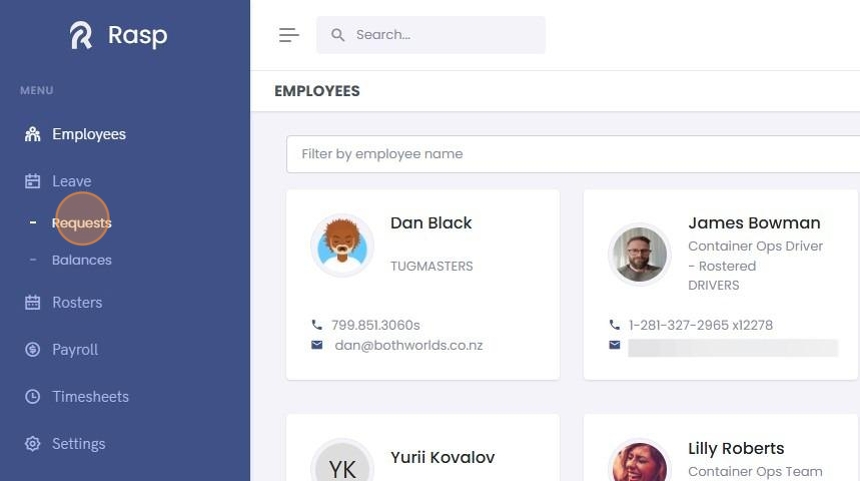
3. The "Leave Requests" table is displayed. It defaults to showing Pending Requests.

The visibility of leave requests in the "Leave Requests" table depends on your role and permissions:
| Relationship Column | Description |
|---|---|
| Direct | You are the direct Leave Manager for these employees. |
| Delegated | Another Leave Manager has delegated their duties to you for these employees. |
| Empty | You have "Can Manage Employees" permission, allowing visibility of all leave requests. |
4. Click "Processed Requests"

5. A list of processed leave requests will display.

6. Click "Details" to view the details of the leave request or action it.

7. Click the "X" to close the panel without making changes.

Viewing Leave Requests on the Roster
1. Click "Rosters" on the side navigation panel.

2. Navigate to the employee's primary roster.

Leave entries are displayed in grey.
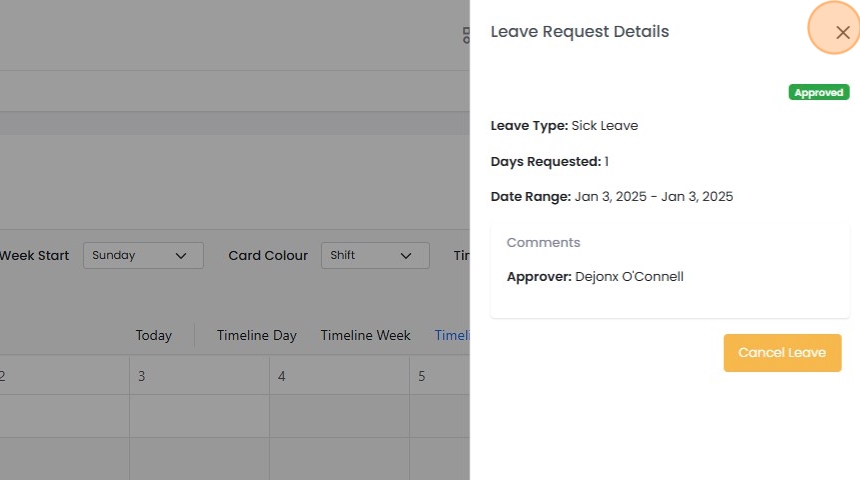
3. Double click on a leave card to open the details panel.

4. The details panel is the same as can be accessed from the "Leave" module.

5. Click the "X" button to close the details panel without making any changes.
Approve Leave Requests
Approving a leave request will remove any roster shifts that overlap with the leave request. If the request is subsequently cancelled, the roster shifts will be restored.
1. Click "Leave" on the side navigation panel.

2. Click "Requests"

The visibility of leave requests in the "Leave Requests" table depends on your role and permissions:
| Relationship Column | Description |
|---|---|
| Direct | You are the direct Leave Manager for these employees. |
| Delegated | Another Leave Manager has delegated their duties to you for these employees. |
| Empty | You have "Can Manage Employees" permission, allowing visibility of all leave requests. |
3. Click "Details" on the Request you want to approve.

4. Add a comment if desired (optional).

5. Click "Approve"

6. The details panel closes. The request has been processed.

7. Click "Processed Requests" above the table to view your processed request.

Decline Leave Requests
1. Click "Leave"

2. Click "Requests"

3. Locate the leave request you want to decline.

Use the "Filter by employee name or leave type" field to filter the request list.
4. Adding a comment is required when declining a leave request.

5. Click "Decline"

6. The request has been declined. Click "Processed Requests" if you want to view it.

7. Click "Details" to view the request details.

8. Leave Request Details
